REAPER
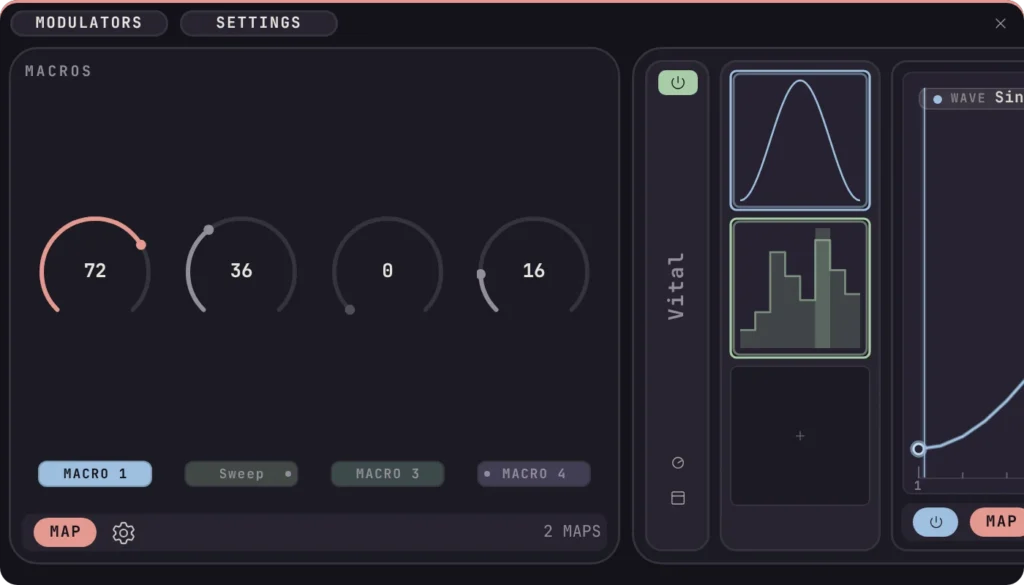
Kerf Modulators
Modulate any plugin parameter from a docked panel: envelopes, LFOs, drawn waves and followers, saved with the project.
Coming soon · £19 in beta

DAW extensions
An extension works inside your DAW itself, not on a single track. It can add its own panel, read your session and change it, so it feels like part of the software.
More DAWs now publish an SDK for building them. Wherever one does, we will build for it.
REAPER
Modulate any plugin parameter from a docked panel: envelopes, LFOs, drawn waves and followers, saved with the project.
Coming soon · £19 in beta
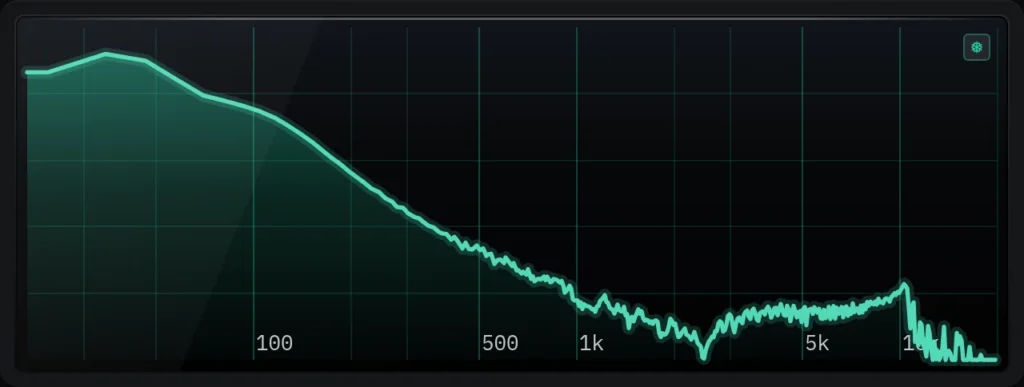
REAPER
Loudness, VU, peak, phase, scope, spectrum and spectrogram for your master bus, in one strip docked across the top.
Coming soon
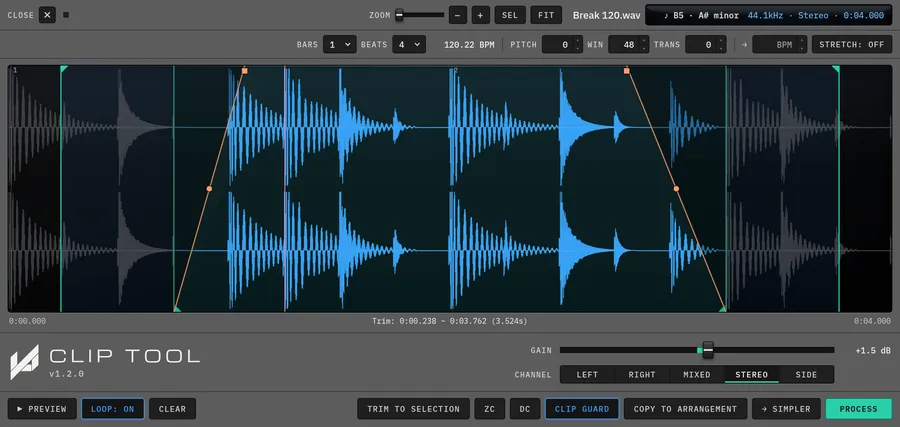
Ableton Live
Edit the actual audio of a clip inside Live, and see every change on the waveform before you commit it.
Free
Installing
REAPER
UserPlugins folder inside it..dylib on macOS, a .so on Linux or a .dll on Windows.SWS has installers for Windows and macOS that do this for you, and ReaPack can install many extensions from inside REAPER. On macOS, if REAPER says an extension could not be loaded, macOS may have blocked the downloaded file: allow it under System Settings › Privacy & Security, then restart REAPER.
To uninstall an extension, quit REAPER, delete its file from UserPlugins and start REAPER again.
When they launch, our own extensions install with ReaPack from the Kerf Audio repository, https://raw.githubusercontent.com/Kerf-Audio/reapack/main/index.xml, and need REAPER 7.8 or later, 64-bit.
Ableton Live
.ablx file..ablx file onto the panel.Not in the menu? Most extensions work on one kind of item, for example audio clips or MIDI clips, so they only appear when you right-click that kind. If an extension does not load at all, check that Developer Mode is off in the Extensions settings, and try turning other extensions off for a moment: the beta can struggle to load many at once.
Added
is in your basket.